How to Recognize Fake Tech Support Calls and Scam Pop-Ups
A scary pop-up says your computer is infected and to call a number — or someone phones claiming to be from support. These tech-support scams are pure theatre designed to panic you. Here's how to spot them and shut them down safely.

Table of contents
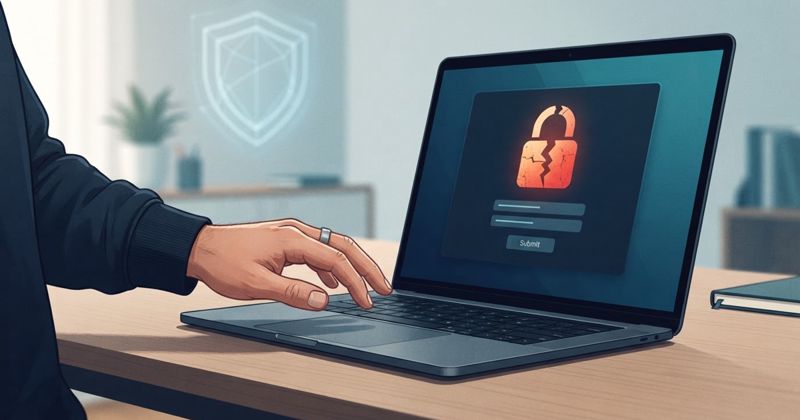
You're browsing along when the screen fills with a flashing warning: "Your computer is infected! Call this number immediately." An alarm may even blare. Or the phone rings and a polite voice says they're from "technical support" and have detected a problem with your device. Both are the same con — the tech support scam — and both work by frightening you into acting before you think. Once you know the script, they lose their power.
How the scam works
Tech support scams follow a predictable playbook:
- The hook. A scary pop-up or an unsolicited phone call claims your device has a virus, has been hacked, or has a "critical error."
- The pressure. They insist you must act right now or lose your files, money, or access.
- The ask. They want you to call a number, let them connect remotely to your computer, or install software so they can "fix it."
- The payoff. Once in, they fake finding problems, then charge you for a bogus fix, steal information, or install real malware — sometimes all three.
The whole thing is theatre. Real technology companies do not watch your personal computer and phone you when something's wrong, and a legitimate error message never demands that you call a phone number.
Red flags of a fake pop-up
Scam pop-ups are designed to look official and feel urgent. Watch for:
- A phone number to call for support — genuine system warnings never include one.
- Full-screen takeovers, loud alarm sounds, or a warning you seemingly can't close.
- Countdown timers or "do not restart your computer" instructions.
- Claims that your accounts, files, or identity will be locked unless you act instantly.
- A message pretending to be from a famous tech brand but appearing inside a web page.
A real virus doesn't announce itself with a helpline. If a "warning" is trying to get you to call or download something, it's a scam.
Red flags of a fake support call
When the scam arrives by phone:
- They called you out of the blue — legitimate providers rarely do, and never to fix a problem you didn't report.
- They ask you to install remote-access software so they can "see the problem."
- They request passwords, banking details, or remote control of your machine.
- They want payment via gift cards, cryptocurrency, wire transfer, or a payment app — untraceable methods are a huge tell.
- They create urgency and discourage you from hanging up to check.
Caller ID can be faked, so a familiar-looking number proves nothing. The behavior is what gives them away.
How to shut down a scam pop-up safely
Do not call the number or click anything inside the pop-up, including its "close" or "cancel" button, which may be a trap. Instead:
- Try closing the browser tab or window.
- If it won't close, close the whole browser using your system's task manager or force-quit, then reopen it without restoring the previous tabs.
- As a last resort, restart the computer. Despite what the pop-up threatens, restarting is safe.
- Afterward, run a scan with your trusted, built-in security software for peace of mind.
The pop-up is almost always just a web page. It cannot actually see or infect your computer — its only power is convincing you to act.
What to do if you already engaged
If you called, let them connect, or paid, don't panic — act methodically. This overlaps heavily with the emergency checklist for after you clicked a bad link:
- Disconnect from the internet to cut off any remote session.
- Uninstall any remote-access or "fixer" software they had you install.
- Change your passwords from a different, trusted device — starting with email and banking.
- Contact your bank or card provider if you paid or shared financial details; ask about reversing charges and watching for fraud.
- Run a full malware scan, and if you're unsure the machine is clean, seek help from a genuine, independently found technician.
- Turn on multi-factor authentication everywhere you can, so a stolen password alone isn't enough.
Why these scams keep working
They don't rely on hacking — they rely on fear and urgency. The victim isn't foolish; they're rushed. The same emotional tricks power a whole family of frauds, which is why modern AI-assisted phishing is getting harder to spot. Slowing down is your best defense: no genuine problem gets worse because you took five minutes to verify.
Simple rules to stay safe
- Real tech companies don't cold-call you about viruses, and real error messages don't include phone numbers.
- Never let an unsolicited caller connect to your computer.
- Never pay for "support" with gift cards or crypto.
- A scary pop-up is just a web page — close the browser, don't call.
- When unsure, hang up or close it, then reach out to a company through its official contact details that you looked up yourself.
Learn the script once, and the next scary pop-up or urgent "support" call becomes what it really is: a bad performance you can simply walk away from.